
How to Chat With PDF Files Without Losing Context
You upload a long PDF, ask a question, and get an answer that sounds confident but somehow misses the point. Maybe it ignores the section you meant, blends two arguments together, skips a table, or forgets what you asked five minutes ago.
That is the common frustration behind trying to chat with PDF files. The problem is rarely that the AI cannot summarize. The real challenge is keeping enough context intact so the answer reflects the document, your goal, and the part of the PDF you actually care about.
The good news is that you can get much better results with a simple workflow. Instead of treating a PDF chat tool like a search box, treat it like a guided reading partner. You tell it what to preserve, where to look, how to answer, and when to separate facts from interpretation.
Why PDF Chat Loses Context
PDFs are not always easy for AI tools to read cleanly. A PDF may contain headings, footnotes, tables, scanned pages, captions, references, sidebars, and multi-column layouts. To a human, these visual cues help organize meaning. To an AI system, the file often has to be extracted into text first, and that extraction can be messy.
Context can also disappear because of how people ask questions. If you upload a 70-page report and ask, “What does this say about risk?” the tool has to guess what kind of risk you mean, which section matters, and how detailed the answer should be. It may produce a broad answer, but not necessarily the one you need.
There are four types of context worth protecting when you chat with PDF files:
- Document context: the structure, purpose, section order, and main argument of the PDF.
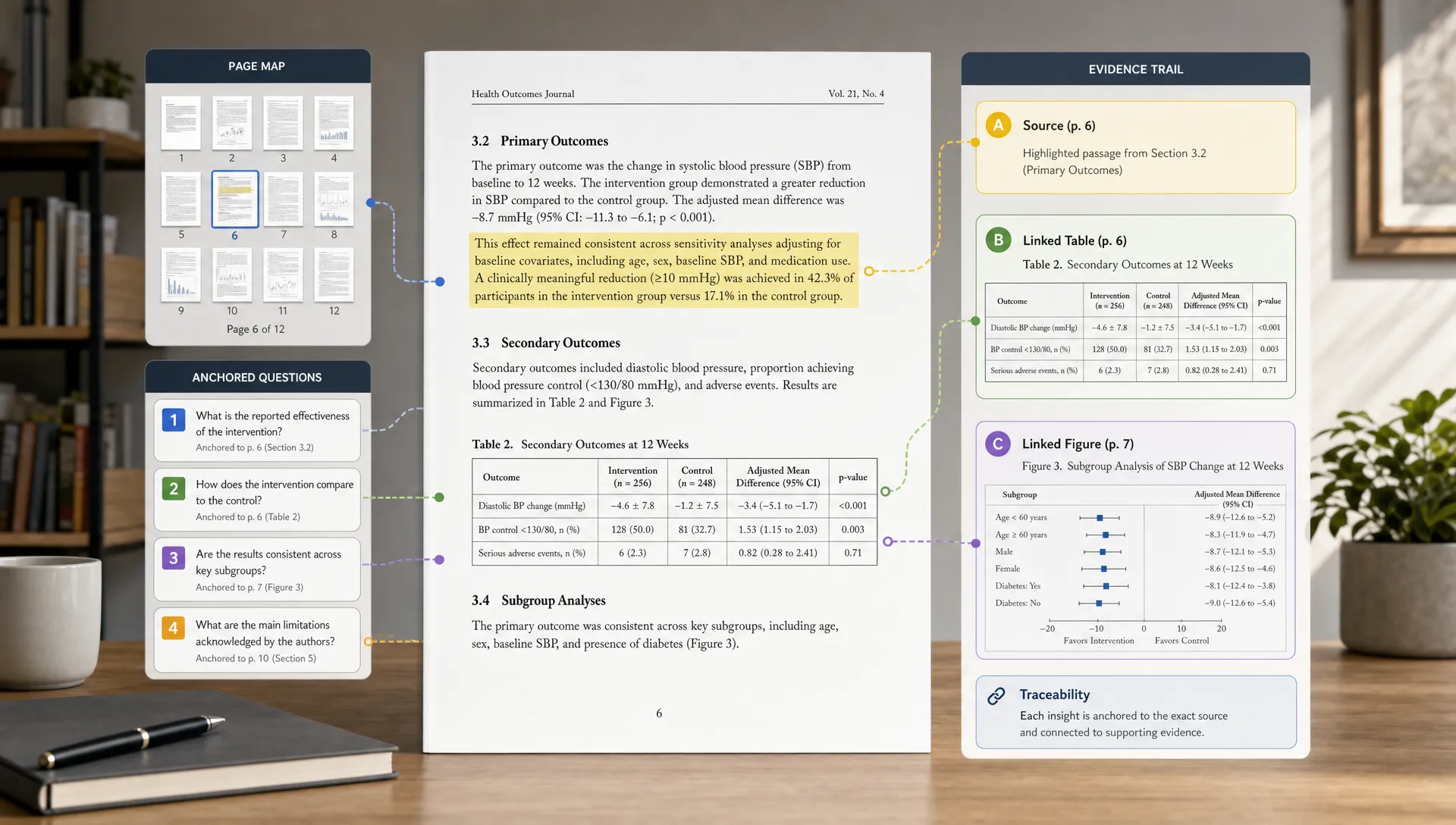
- Source context: the page, table, paragraph, figure, or section where an answer comes from.
- Question context: what you are trying to find out and why it matters.
- Conversation context: what has already been discussed in the chat and what should carry forward.
If any of these are missing, the answer may be technically readable but practically weak. Your goal is not just to get “an answer.” Your goal is to keep the answer anchored to the PDF.
Start With a Map Before You Ask Detailed Questions
The biggest mistake people make is jumping straight into detailed questions before the AI has helped build a map of the document. A map gives the conversation a shared reference point. It makes later questions more precise and reduces the chance that the AI will pull from the wrong section.
A good first prompt looks like this:
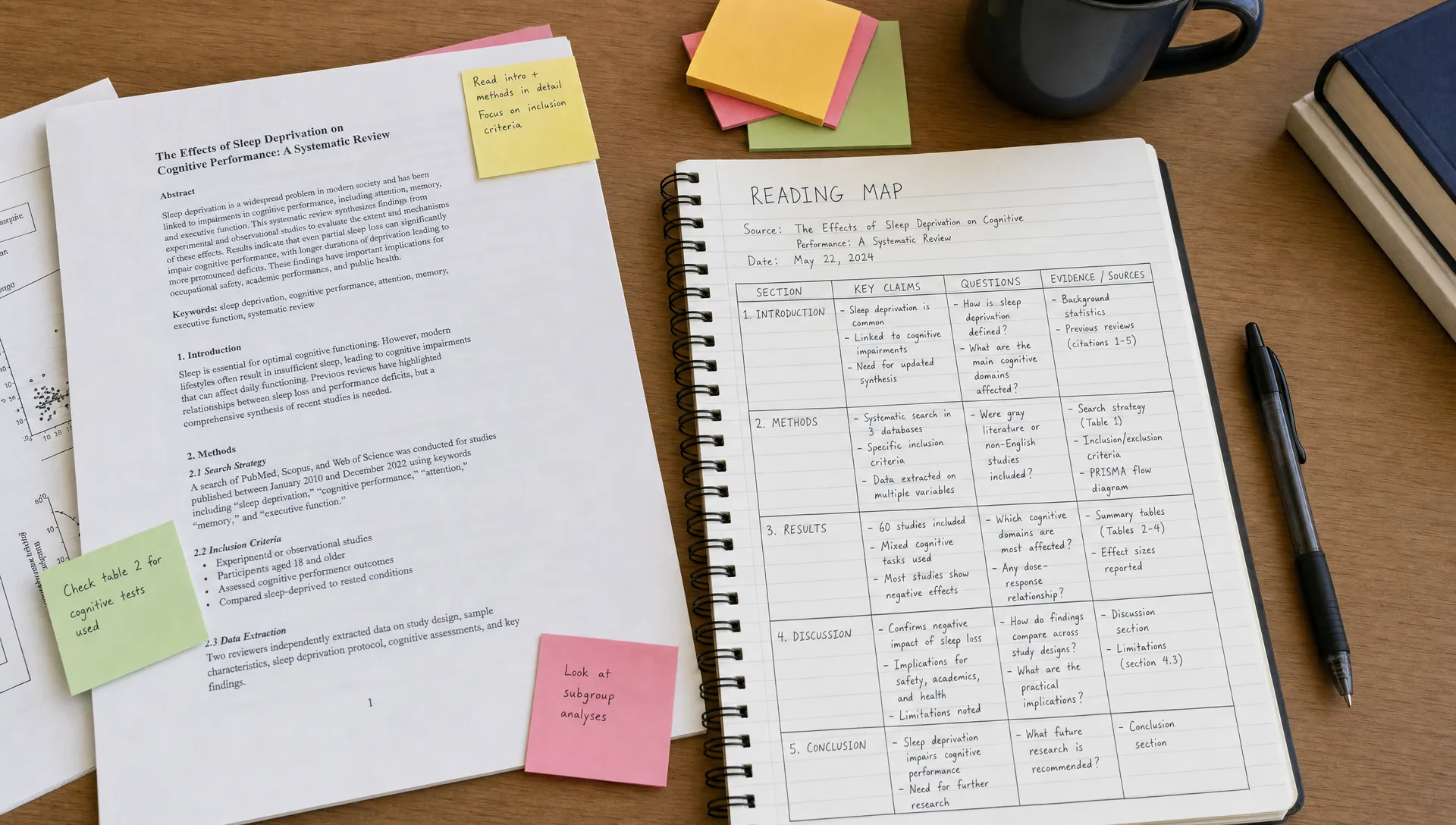
Create a structured map of this PDF before answering any detailed questions. Include the document’s purpose, main sections, key terms, major claims, evidence used, and any limitations or caveats the author mentions.
This prompt forces the tool to orient itself around the whole document. It also gives you a quick way to verify whether the PDF was parsed correctly. If the AI misses major sections, misreads the title, or fails to recognize tables and appendices, you know to proceed carefully.
For research papers, this mapping step is especially useful because papers have a predictable structure, but the real meaning often sits in the methods, assumptions, and limitations. If your PDF is an academic article, you may also want to pair this workflow with a more paper-specific method for summarizing a research paper without losing the point.
Define Your Reading Goal Early
A PDF can be read in many ways. A student preparing for an exam needs different output from a consultant reviewing a market report, a researcher checking methodology, or a creator turning a white paper into a newsletter outline.
Before asking for answers, tell the AI what kind of reader you are and what you need from the PDF. This does not need to be complicated. A one-sentence goal can dramatically improve relevance.
For example:
I am reading this as a graduate student preparing for a seminar. Focus on the main argument, key evidence, definitions, and likely discussion questions.
Or:
I am reviewing this as a product manager. Focus on user behavior insights, market risks, data points, and recommendations that could affect roadmap decisions.
Or:
I am a content creator. Help me identify the strongest ideas, useful examples, surprising statistics, and possible angles for a short educational article.
This works because “context” is not only inside the PDF. It also comes from your purpose. The same paragraph may be important for one reader and irrelevant for another.
Use a Two-Pass Workflow: Understand First, Interrogate Second
When you chat with a PDF, it is tempting to ask a long list of questions immediately. A better approach is to split the conversation into two passes.
In the first pass, focus on comprehension. Ask the AI to identify the document’s structure, thesis, key terms, and evidence. Your aim is to understand the terrain.
In the second pass, focus on interrogation. Ask sharper questions about assumptions, contradictions, methodology, missing evidence, implications, or how one section connects to another.
Here is a simple two-pass workflow:
| Pass | Goal | Example prompt |
|---|---|---|
| First pass | Build understanding | “Summarize the PDF section by section, preserving the author’s structure and main claims.” |
| Second pass | Ask deeper questions | “Now compare the claims in Sections 2 and 5. Do they rely on the same assumptions?” |
| First pass | Extract key material | “List the main concepts, definitions, data points, and conclusions.” |
| Second pass | Evaluate usefulness | “Which conclusions are best supported by evidence, and which seem more speculative?” |
This workflow is slower than asking one broad question, but it saves time later because your notes are more accurate and easier to trust.
Ask Questions With Location Anchors
Vague questions make the AI guess. Location-specific questions keep the answer grounded.
Instead of asking:
What does the author say about implementation?
Ask:
In the section titled “Implementation Challenges,” what are the three main barriers the author identifies, and what evidence is provided for each?
Instead of asking:
Summarize the findings.
Ask:
Summarize the findings from pages 12 to 16. Keep the summary separate from the author’s recommendations later in the report.
Location anchors can include page numbers, section headings, table names, figure numbers, chapter titles, or quoted phrases. Even if the AI tool does not perfectly preserve page numbers, these anchors still help narrow the task.
This is especially important for long PDFs where the same concept appears in multiple places. A policy report, for example, might discuss “cost” in the executive summary, methodology, case studies, and recommendations. If you do not specify where to look, the answer may merge all of those contexts into one vague response.
Keep a Running Context Brief
Long conversations can drift. After several questions, the AI may stop using the original framing or may forget distinctions you established earlier. A running context brief helps prevent that.
Ask the tool to maintain a short, updated brief that captures the important decisions made in the conversation. This is different from a summary of the PDF. It is a summary of how you are reading the PDF.
A useful prompt is:
Keep a running context brief for this conversation. After each major answer, update the brief with the sections we have covered, definitions we are using, open questions, and any assumptions that should carry forward.
You can also ask for the brief at any point:
Before answering the next question, restate the current context of our conversation in 5 bullet points. Include what we have already established and what remains unresolved.
This is helpful for students building study notes, analysts reviewing a long report over multiple sessions, and researchers comparing arguments across a dense paper. It reduces the chance of asking the same question repeatedly or mixing up conclusions from different sections.
Separate Extraction, Explanation, and Evaluation
Many weak PDF chat answers fail because they mix three different tasks: extracting what the document says, explaining what it means, and evaluating whether it is strong.
Those are not the same thing.
Extraction should stay close to the source. Explanation can simplify or reframe the material. Evaluation adds judgment, critique, or comparison. If you ask for all three at once, the answer may blur the author’s claims with the AI’s interpretation.
A better approach is to ask in stages:
| Task | What to ask for | Why it protects context |
|---|---|---|
| Extract | “Pull out the author’s exact claims about X, with section references.” | Keeps the answer close to the PDF. |
| Explain | “Explain those claims in simpler language for a non-specialist.” | Makes the material easier to understand without changing the source. |
| Evaluate | “Assess whether the evidence supports those claims.” | Separates judgment from summary. |
| Apply | “What would this imply for a classroom discussion, business decision, or content outline?” | Connects the PDF to your goal. |
This structure is useful because it creates a clear chain from source to understanding to action. If the final recommendation feels off, you can trace it back to the extracted claims and check whether the issue came from the document or the interpretation.
Ask for Evidence, Not Just Answers
When you chat with PDF files, every important answer should be traceable. That does not mean every response needs formal academic citations, but it should show where the answer came from.
Use prompts like:
Answer using only evidence from the PDF. For each point, include the section or page where the evidence appears. If the PDF does not support an answer, say so.
Or:
Give me a concise answer first, then list the supporting passages or sections that justify it.
This is one of the easiest ways to reduce hallucinated or overconfident answers. It also helps you decide what you still need to read manually. AI can speed up comprehension, but it should not replace checking important passages yourself, especially for academic, legal, medical, financial, or technical decisions.
If the answer includes a claim that seems surprising, ask a follow-up:
Which exact part of the PDF supports that claim? Quote the relevant sentence or describe the table where it appears.
If the tool cannot point back to the document, treat the answer as uncertain.
Match the Reading Mode to the Task
Not every PDF deserves the same level of attention. Some documents only need a quick overview. Others require careful analysis, cross-checking, and note-making.
Before starting, decide whether you need a quick grasp or a deep dive. A quick grasp is useful for screening a document, deciding whether it is relevant, or preparing for a first read. A deep dive is better when you need to study, cite, teach, critique, or apply the content.
This distinction matters because the prompts are different. A quick-grasp prompt might ask for the thesis, audience, and five takeaways. A deep-dive prompt might ask for section-by-section analysis, assumptions, definitions, evidence quality, and unresolved questions.
If you are not sure which approach fits your material, the guide on choosing the right reading mode offers a useful framework for deciding how much attention a document deserves.
A tool like unrav.io is built around this idea of reframing content based on your goal. Instead of only producing a generic summary, it can help you approach PDFs, links, videos, and text through different thinking modes, such as getting the gist, going deeper, or preparing to explain the material to someone else.
Use Better Prompts for Common PDF Tasks
Good prompts do not need to be long. They just need to include the task, scope, output format, and context you want preserved.
Here are practical examples you can adapt:
| Goal | Weak prompt | Better prompt |
|---|---|---|
| Understand the whole PDF | “Summarize this.” | “Summarize this PDF by section. Preserve the author’s structure, main argument, key evidence, and caveats.” |
| Study for class | “Make notes.” | “Turn this chapter into study notes with key terms, core concepts, examples, and likely exam questions. Do not include minor details unless they support a main idea.” |
| Review a report | “What matters here?” | “Identify the findings, risks, assumptions, and recommendations most relevant to a strategy team deciding what to do next.” |
| Analyze a paper | “Is this good?” | “Evaluate the methodology, evidence, limitations, and whether the conclusions follow from the results.” |
| Create content | “Give me content ideas.” | “Extract the most teachable ideas from this PDF and turn them into five article angles, each with a clear audience and key takeaway.” |
The pattern is simple: do not only ask for output. Tell the AI what role the output should play in your work.
For textbook chapters, the same principle applies. You usually do not want to rewrite everything. You want to identify the concepts that explain the rest. If that is your use case, you may find it helpful to use a focused workflow for summarizing textbook chapters without rewriting everything.
Check Tables, Figures, and Footnotes Manually
PDF chat tools are often strongest with continuous text. They may be less reliable with tables, charts, formulas, scanned images, footnotes, and multi-column layouts. These elements often carry important context, so do not ignore them.
When a PDF contains tables or figures, ask specifically about them:
Identify all tables and figures in this PDF. For each one, explain what it shows, why it matters to the author’s argument, and whether it changes the interpretation of the text.
Then verify the most important ones yourself. This is not a failure of AI. It is a normal part of careful reading. In many technical documents, the table is the evidence and the prose is only the explanation. If the table is misread, the summary can be misleading.
Footnotes also matter. In academic and legal PDFs, footnotes may contain caveats, definitions, source disputes, or important qualifications. If the PDF is high stakes, ask the AI to identify whether any footnotes or appendices materially affect the main argument.
Use PDF Chat to Build Notes, Not Just Answers
The best PDF chat workflow produces reusable notes. If you only ask questions and read answers, you may understand the PDF in the moment but lose the value later.
After a session, ask for a structured output you can save:
Turn our conversation into a clean set of notes. Include the document’s thesis, section summaries, key evidence, definitions, important quotes, open questions, and my takeaways. Separate what the author says from my interpretation.
This is useful for many audiences:
- Students can turn readings into study guides and flashcard prompts.
- Researchers can extract methods, findings, limitations, and related questions.
- Professionals can turn long reports into decision briefs.
- Creators can transform dense PDFs into outlines, scripts, newsletters, or teaching material.
- Educators can simplify complex readings for lesson planning without removing important nuance.
The goal is not to avoid reading. The goal is to read with a better structure, then leave with notes that make the document easier to revisit.
Common Mistakes to Avoid
One common mistake is asking for a summary before telling the AI what kind of summary you need. A summary for exam prep is not the same as a summary for executive decision-making.
Another mistake is accepting answers without source checks. If the answer matters, ask where it came from. If the tool cannot point back to the PDF, verify manually.
A third mistake is using the chat as a replacement for judgment. AI can help you move through dense material faster, but it does not know your course requirements, research standards, business constraints, or editorial goals unless you provide them.
Finally, do not let the conversation become too broad. If the answer starts drifting, reset the context:
Return to the PDF only. Use the section map we created earlier. Answer the next question based on Section 4, and do not bring in outside assumptions unless I ask for them.
That one prompt can rescue a conversation that has started to wander.
A Simple Workflow You Can Reuse
If you want a repeatable process, use this sequence whenever you chat with a PDF:
- Map the document first: Ask for the purpose, structure, main claims, key terms, evidence, and caveats.
- Define your goal: Tell the AI whether you are studying, researching, reviewing, teaching, or creating.
- Ask location-specific questions: Use page numbers, section headings, tables, figures, or quoted phrases.
- Separate tasks: Extract first, explain second, evaluate third, and apply only after the source is clear.
- Request evidence: Ask for section references, page anchors, or supporting passages.
- Create final notes: Turn the conversation into a structured document you can reuse.
This workflow keeps the conversation grounded. It also makes the AI more useful because each step gives it clearer boundaries.
Frequently Asked Questions
What does it mean to chat with a PDF? It means using an AI tool to ask questions about a PDF, summarize sections, extract information, explain concepts, or turn the document into notes. The best results come from asking specific, source-grounded questions rather than broad prompts.
How do I stop AI from losing context in a long PDF? Start with a document map, define your reading goal, ask questions by section or page, keep a running context brief, and ask the tool to cite where each important answer comes from.
Can AI fully replace reading a PDF? No. AI can help you understand, organize, and navigate dense PDFs faster, but you should still read important sections yourself, especially when accuracy, citations, or expert judgment matter.
What is the best first prompt for chatting with a PDF? A strong first prompt is: “Create a structured map of this PDF, including its purpose, main sections, key claims, evidence, definitions, and limitations. Do not answer detailed questions until the map is complete.”
How can students use PDF chat for studying? Students can ask for section summaries, key terms, concept explanations, practice questions, flashcard prompts, and study guides. They should also ask the AI to separate major ideas from minor details.
How can researchers use PDF chat without losing nuance? Researchers should ask for the research question, methods, assumptions, results, limitations, and contribution separately. They should verify quoted claims, tables, citations, and methodological details manually.
Turn PDF Chat Into Better Understanding
Chatting with a PDF works best when you guide the conversation. Start with structure, preserve source context, ask focused questions, and turn the results into notes you can trust and reuse.
If you want a calmer way to work through dense material, unrav.io can help you reframe PDFs, links, videos, and text based on what you are trying to do, whether that is getting a quick grasp, going deeper, or preparing to explain the content to someone else. The key is not to let AI replace your thinking. Use it to make complex material easier to understand, question, and remember.